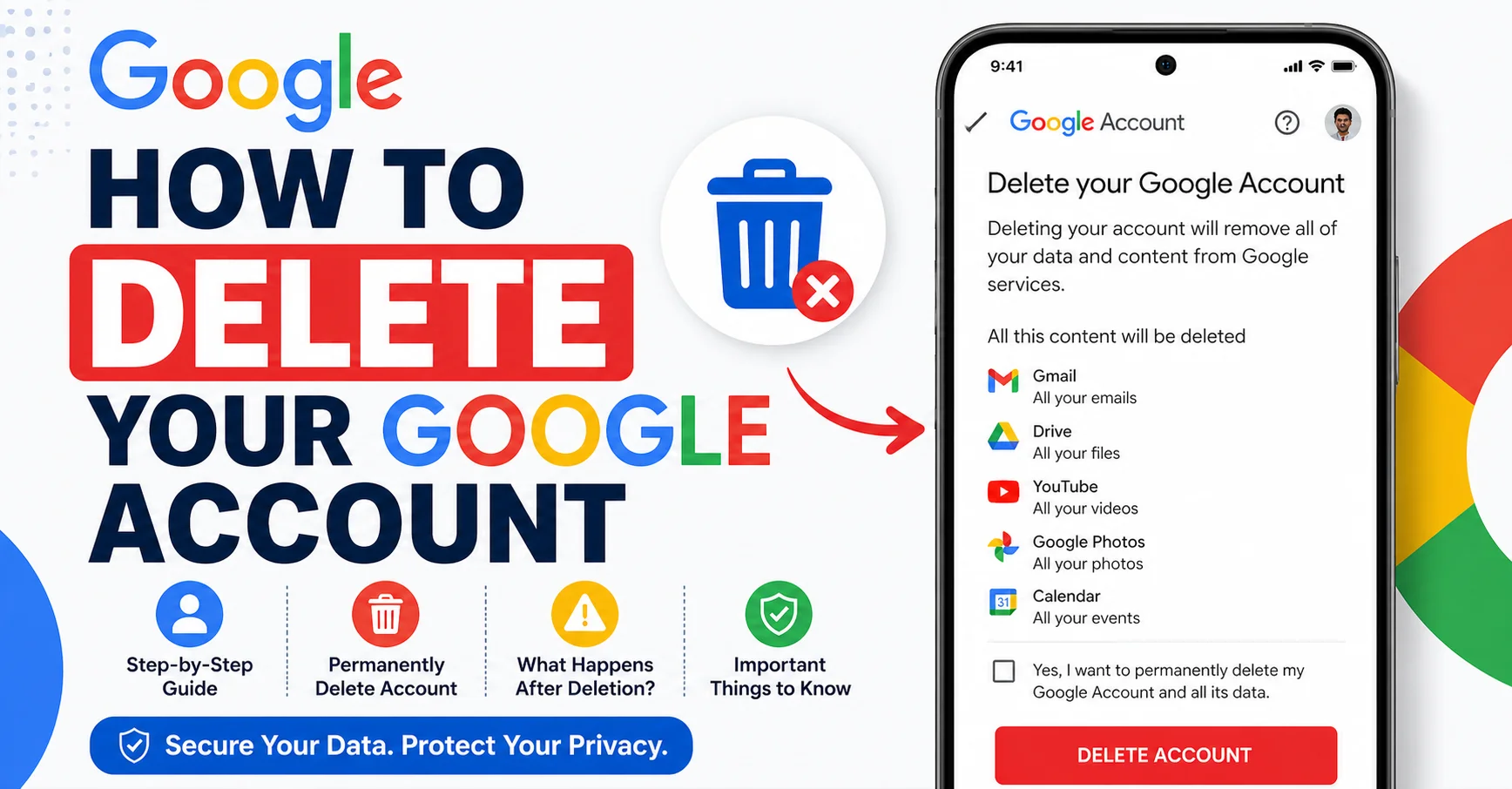
Deleting a Google account is one of the biggest digital housekeeping decisions you can make.
Your Google account is not just an email address. It is the key to Gmail, Google Drive, Google Photos, YouTube, Google Maps, Google Pay, Android phone settings, and dozens of other services all tied to one login. Deleting it means all of that goes away — permanently.
That is exactly why this guide exists. Before you delete, you need to know what you are losing, how to save what matters, and exactly how to complete the process on every device without making a mistake you cannot undo.
This is the complete, step-by-step guide to deleting your Google account in 2026.
What Happens When You Delete Your Google Account?
Understanding what deletion actually removes is the most important first step. When you permanently delete your Google account, you lose access to:
- Gmail — All emails, contacts, and email history associated with that address are permanently deleted
- Google Drive — Every file, document, spreadsheet, presentation, and folder stored in Drive is gone
- Google Photos — All photos and videos backed up to the account are permanently removed
- YouTube — Your channel, uploaded videos, subscriptions, watch history, and comments are deleted
- Google Play — Apps, games, movies, books, and purchases tied to the account become inaccessible
- Google Maps — Saved places, reviews, and location history are erased
- Google Pay — Any payment methods and transaction history are removed
- Android device access — If your phone is linked to this Google account, removing it affects device functions
This is not reversible. Once the account is deleted and the grace period has passed, none of this can be recovered. Download everything first.
Option 1 — Delete Only Gmail, Keep Your Google Account
Many people want to delete their Gmail address without losing access to everything else connected to their Google account. Google allows this.
If you only want to remove Gmail but keep Google Drive, YouTube, and other services active, you can delete just the Gmail service rather than the entire account.
To do this, go to myaccount.google.com, click Data and Privacy, scroll to Delete a Google service, click the bin icon next to Gmail, and follow the steps. You will need to add an alternative email address to your account before Gmail can be removed.
If you want to delete everything — the entire Google account and all services — continue with the steps below.
Step 1 — Download Your Google Data Before Deleting
Google provides a free tool called Google Takeout that lets you download a complete copy of everything stored in your account before you delete it. This includes Gmail emails, Drive files, Photos, YouTube videos, contacts, calendar events, and much more.
How to use Google Takeout:
Go to takeout.google.com and sign in to the account you want to delete. Select the Google services you want to download data from — you can select all or choose specific ones. Choose your file type (ZIP is recommended), your maximum file size, and your delivery method (email link or cloud delivery). Click Create Export.
Depending on how much data your account holds, the export can take anywhere from a few minutes to several days. Google will email you a download link when it is ready. Download and save all files before proceeding with deletion.
How to Delete Your Google Account — Step by Step
Deleting Google Account on Desktop or Laptop
Step 1: Open any web browser and go to myaccount.google.com. Sign in to the Google account you want to delete.
Step 2: In the left side navigation panel, click Data and Privacy.
Step 3: Scroll down to the section titled More options and click Delete your Google Account.
Step 4: Google will show you a summary of everything that will be deleted. Read through this carefully so you understand exactly what you are removing.
Step 5: Scroll down and you will see two checkboxes confirming that you understand the consequences of deletion. Check both boxes.
Step 6: Click the blue Delete Account button at the bottom of the page.
Step 7: Google may ask you to re-enter your password or verify your identity through two-factor authentication before the deletion is confirmed.
Your account deletion is now initiated. Google provides a short grace period during which you may be able to recover the account by signing in — after which deletion becomes permanent.
Deleting Google Account on Android Phone
Step 1: Open the Settings app on your Android device.
Step 2: Scroll down and tap Google or Accounts depending on your device model.
Step 3: Tap the Google account you want to delete.
Step 4: Tap More or the three-dot menu in the top right corner and select Remove Account.
Note: Removing an account from your Android device is not the same as deleting it permanently. This only unlinks the account from the device. To permanently delete the account, follow the desktop steps above or use a mobile browser to visit myaccount.google.com.
Deleting Google Account on iPhone or iPad
Step 1: Open the Settings app and scroll down to Mail or Passwords & Accounts.
Step 2: Tap the Google account you want to remove and select Delete Account.
Step 3: Again — this only removes the account from your iPhone. It does not permanently delete the Google account. To permanently delete, open Safari or Chrome on your iPhone, go to myaccount.google.com, sign in, and follow the desktop steps above.
How to Recover a Deleted Google Account
Google provides a recovery window after you initiate deletion. During this period — which can last a few days — you may be able to recover your account by going to accounts.google.com/signin/recovery and following the recovery steps.
Once this grace period ends and deletion is finalised, account recovery is no longer possible. Google does not restore permanently deleted accounts under any standard circumstances.
What Happens to Your Gmail Address After Deletion?
Once your Gmail address is deleted as part of your Google account, that email address is permanently retired. Nobody else can create an account using the same Gmail address in the future. If you shared that email address with colleagues, services, or subscriptions, those will all stop working once the account is gone.
Before deleting, update your email address on any important accounts — banking, government services, subscriptions, work platforms, and any service that sends critical information to your Gmail address.
Frequently Asked Questions: How to Delete Google Account
Q: Can I delete my Google account from the Gmail app or Google app on my phone?
A: No. You cannot permanently delete a Google account from within the Gmail or Google app. You must visit myaccount.google.com through a web browser — either on desktop or your phone’s mobile browser — and follow the Data and Privacy steps to initiate permanent deletion.
Q: Will deleting my Google account delete my YouTube channel?
A: Yes. Deleting your Google account permanently deletes your YouTube channel, all uploaded videos, playlists, subscribers, and channel history. If you want to keep your YouTube channel, do not delete the Google account — instead, consider just changing your Gmail address or removing specific services.
Q: How long does Google take to permanently delete an account?
A: Google typically processes account deletion within a few days to a few weeks depending on the volume of data. Some data may remain on Google’s backup servers for up to 180 days before being fully removed from all systems.
Q: Can I keep my Google Drive files after deleting my Google account?
A: No — not automatically. You must download your Drive files using Google Takeout before deleting your account. Once the account is deleted, Drive files are permanently removed and cannot be accessed or recovered.
Q: What happens to my Android phone if I delete my Google account?
A: Deleting your Google account can significantly affect your Android device. You may lose access to Google Play apps, Google Pay, Gmail, and other core Android functions tied to the account. Before deleting, consider whether you have an alternative Google account to link to the device.
Q: Is deleting a Google account the same as deleting Gmail?
A: No. Deleting Gmail removes only your Gmail address and email data but keeps the rest of your Google account — Drive, Photos, YouTube, and other services — intact. Deleting your Google account removes everything across all Google services permanently.
Also Read: Top 10 Tricks to Keep Your Social Media Account Growing
Final Checklist Before Deleting Your Google Account
Work through this checklist before you confirm deletion to make sure nothing important is lost:
- Use Google Takeout to download all data — emails, Drive files, Photos, YouTube videos
- Update your email address on all important accounts and subscriptions
- Save any important contacts from Gmail contacts
- Note down any app purchases from Google Play you want records of
- Download any Google Pay transaction history you need
- Inform important contacts of your new email address
- Ensure your Android phone has an alternative Google account linked if needed
- Check whether any business accounts or third-party services use Google Login
Once you have worked through the checklist and are certain about your decision, the deletion process itself takes less than five minutes.
A Google account deletion is permanent and wide-reaching — but with the right preparation, it can be completed cleanly, completely, and without regret.