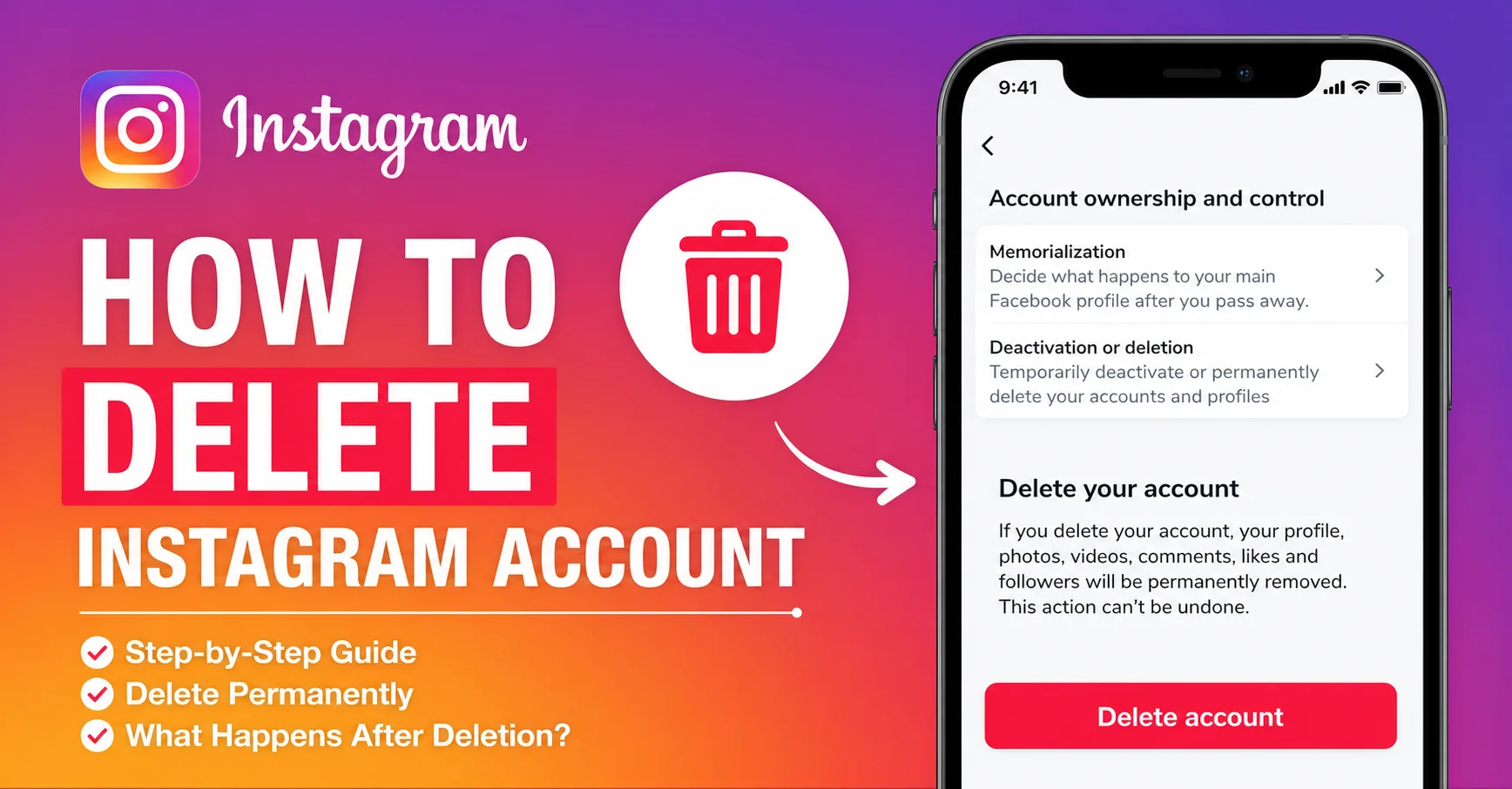
Thinking about deleting your Instagram account?
Whether you are taking a break from social media, concerned about your privacy, or simply done with the platform entirely, deleting your Instagram account is a straightforward process — but one that has a few important things to know before you hit that final button.
This complete guide covers everything: the difference between deactivating and deleting, how to download your data before you go, step-by-step instructions for every device, and answers to the most common questions people have before making the decision permanent.
Deactivate vs Delete — What Is the Difference?
Before going any further, it is important to understand the difference between these two options because they produce very different outcomes.
Deactivating your Instagram account is a temporary action. Your profile, photos, videos, comments, and followers are all hidden from the platform but not permanently removed. Your account goes into a kind of hibernation. You can reactivate it at any time simply by logging back in with your username and password. Everything will be exactly as you left it.
Deleting your Instagram account is permanent. Once you confirm deletion, your profile, photos, videos, stories, messages, followers, and all associated data are scheduled for permanent removal. Instagram gives a 30-day grace period during which you can log back in and cancel the deletion if you change your mind. After 30 days, the account and all its data are gone permanently and cannot be recovered.
Choosing between the two depends entirely on your intention. If you need a break but are not ready to commit to permanent deletion, deactivate. If you are certain you no longer want the account, delete.
Step 1 — Download Your Instagram Data First
Before deleting your account, strongly consider downloading a copy of all your Instagram data. This includes your photos, videos, reels, stories, messages, comments, and account information — everything you have ever posted or received on the platform.
Once your account is permanently deleted, this data cannot be retrieved. Downloading it first ensures you keep everything important.
How to download your Instagram data:
Open Instagram and go to your profile. Tap the three lines in the top right corner and select Settings and Privacy. Scroll down to Your Activity and tap Download Your Information. Enter the email address where you want the download link sent. Select All Available Data and choose your preferred file format — HTML is easier to read, JSON is better for transferring data. Tap Request a Download.
Instagram will email you a download link within 48 hours. The file size depends on how much you have posted over the years.
How to Delete Your Instagram Account — Step by Step
Important: As of 2026, Instagram does not allow you to permanently delete your account from directly within the mobile app. You must use a web browser — either on your phone or on a desktop computer — to complete permanent deletion.
Deleting Instagram Account on iPhone or Android (via Mobile Browser)
Step 1: Open your mobile browser — Safari, Chrome, or any browser — and go to instagram.com. Log in to the account you want to delete.
Step 2: Once logged in, tap your profile photo in the bottom right to go to your profile page.
Step 3: Tap the three lines in the top right corner and select Settings and Privacy.
Step 4: Scroll down and tap Account. Then tap Delete Account.
Step 5: Instagram will show you a page with the option to either deactivate or delete. Select Delete Account.
Step 6: Instagram will ask you to select a reason for deleting from a dropdown menu. Choose the reason that best applies.
Step 7: You may be prompted to re-enter your password to confirm your identity.
Step 8: Tap Delete Account one final time. Instagram will display a confirmation that your account is scheduled for deletion within 30 days.
Deleting Instagram Account on Desktop or Laptop
Step 1: Open any web browser and go to instagram.com. Log in to your account.
Step 2: Click on your profile photo in the top right corner and select Settings.
Step 3: On the left side menu, click Account. Then click Delete Account at the bottom of the page.
Step 4: Select your reason for deleting from the dropdown menu provided.
Step 5: Re-enter your account password when prompted.
Step 6: Click Delete Account to confirm. Your account will be scheduled for permanent deletion within 30 days.
How to Deactivate Your Instagram Account Temporarily
If you want to take a break rather than delete permanently, deactivation is the better choice.
Step 1: Open a web browser and go to instagram.com. Log in to your account.
Step 2: Go to your profile and open Settings and Privacy.
Step 3: Select Account and then choose Deactivate Account.
Step 4: Select a reason from the dropdown menu and re-enter your password.
Step 5: Tap or click Deactivate Account to confirm.
Your account will be hidden immediately. To reactivate, simply log back in using your username and password and your account will be restored instantly.
Related: Instagram Reels Not Getting Views in 2026 – Algorithm Explained
What Happens After You Delete Your Instagram Account?
Once you confirm account deletion, here is what happens during the 30-day window and after:
During the 30-day period: Your profile is immediately hidden from other users. Nobody can find your account, view your posts, or send you messages. However, you can still log back in during this period to cancel the deletion if you change your mind. Simply log in with your credentials and select the option to cancel deletion.
After 30 days: Your account, profile, photos, videos, reels, messages, comments, followers, and all associated data are permanently and irreversibly deleted from Instagram’s servers. This cannot be undone under any circumstances.
Your username: After deletion, your username may become available for other users to register. If keeping your username matters to you, consider deactivating instead of deleting, as deactivation reserves the username.
Third-party apps: Any apps or services you connected to your Instagram account using Instagram Login will lose that login access. You will need to create new logins for those services.
Frequently Asked Questions: How to Delete Instagram Account
Q: Can I delete my Instagram account from the Instagram app?
A: No. As of 2026, Instagram requires you to use a web browser to permanently delete your account. You cannot complete account deletion through the Instagram mobile app directly. You can access instagram.com through your phone’s mobile browser to complete the process.
Q: How long does it take for Instagram to permanently delete my account?
A: After you confirm deletion, Instagram schedules permanent removal within 30 days. During those 30 days your profile is hidden but you can still cancel. After the 30-day period your account and all data are permanently removed with no possibility of recovery.
Q: Will my Instagram messages be deleted when I delete my account?
A: Yes. Your sent messages will be deleted from your account. However, people you messaged may still see the conversation on their end, though your name and profile will no longer be accessible.
Q: Can I delete one Instagram account without affecting another?
A: Yes. If you manage multiple Instagram accounts, you can delete a specific account by logging into that account and following the deletion steps. Your other accounts will not be affected.
Q: What happens to my Instagram data after deletion?
A: Instagram permanently removes your account data from its servers within 90 days of the 30-day deletion window closing. This includes photos, videos, profile information, messages, and all activity data. This is why downloading your data before deletion is strongly recommended.
Q: Can I recover a deleted Instagram account after 30 days?
A: No. Once the 30-day grace period has passed and deletion is completed, your account cannot be recovered under any circumstances. Instagram does not offer account restoration after permanent deletion.
Also Read: Phone Heating While Using Instagram or Reels? Real Reasons & Easy Fixes
Final Checklist Before You Delete
Before you confirm deletion, run through this quick checklist to make sure you are fully prepared:
- Download all your photos, videos, and data from Instagram
- Note down any important contacts or usernames you want to keep
- Disconnect any third-party apps that use Instagram Login
- Save any conversations or messages you want to keep
- Consider whether deactivation might serve your needs better than deletion
- Make sure you are logged into the correct account if managing multiple profiles
Once you are ready and certain, the process takes less than five minutes from start to confirmation.
Deleting social media is a personal decision that only you can make — and now you have everything you need to do it quickly, safely, and with full knowledge of what happens next.